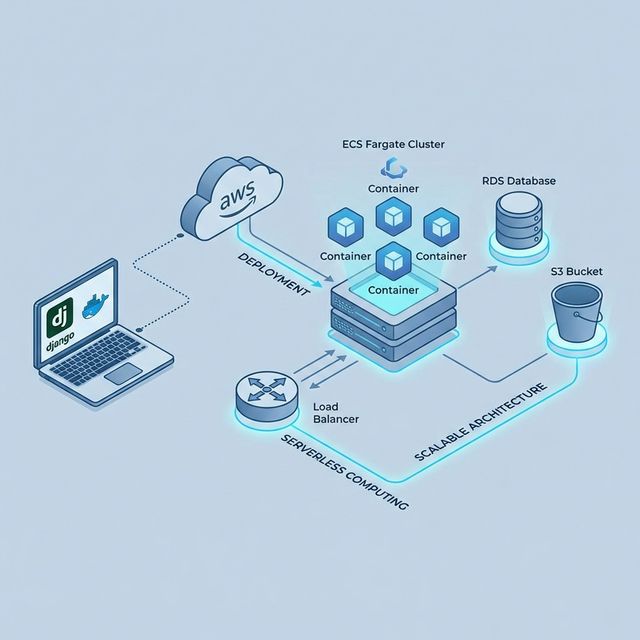
Enable ECS Exec on AWS
Amazon Elastic Container Service (ECS) Exec is an incredibly powerful feature that allows you to interact with your containers securely without needing to manage SSH keys, bastion hosts, or expose any inbound ports. It relies on the AWS Systems Manager (SSM) Session Manager to open a secure channel to your container.
However, getting ECS Exec working for the first time can be slightly tricky because of the strict IAM permissions and networking requirements. In this article, we'll go through the exact steps to enable it, define the correct IAM policies, and introduce a lifesaver script from AWS that automatically diagnoses any misconfigurations.
Prerequisites
- AWS CLI v2 installed and configured.
- The Session Manager plugin for AWS CLI installed.
- An existing ECS Cluster and Task Definition.
1. Adding Required IAM Role Policies
The most common reason ECS Exec fails is due to missing permissions. Specifically, your Task Role (not the Task Execution Role) needs permissions to communicate with the AWS Systems Manager service.
Attach the following inline policy to the IAM role that your ECS Task uses (Task Role):
{
  "Version": "2012-10-17",
  "Statement": [
    {
      "Effect": "Allow",
      "Action": [
        "ssmmessages:CreateControlChannel",
        "ssmmessages:CreateDataChannel",
        "ssmmessages:OpenControlChannel",
        "ssmmessages:OpenDataChannel"
      ],
      "Resource": "*"
    },
    {
      "Sid": "ExecuteCommandSessionManagement",
      "Effect": "Allow",
      "Action": [
        "ssm:DescribeSessions"
      ],
      "Resource": "*"
    },
    {
      "Sid": "ExecuteCommand",
      "Effect": "Allow",
      "Action": [
        "ssm:StartSession"
      ],
      "Resource": [
        "arn:aws:ecs:*:*:task/*",
        "arn:aws:ssm:*:*:document/AmazonECS-ExecuteInteractiveCommand"
      ]
    }
  ]
}
2. Enabling ECS Exec on Your Service/Task
To use ECS Exec, you must explicitly enable it when creating or updating your ECS service or when running a standalone task.
You can enable it via the AWS CLI when updating your service:
aws ecs update-service \
    --cluster your-cluster-name \
    --service your-service-name \
    --enable-execute-command \
    --force-new-deployment
After you have enabled ECS Exec for a task, it's a good practice to confirm the task is ready to be used. You can
check the ExecuteCommandAgent status by running:
aws ecs describe-tasks \
    --region your-region \
    --cluster your-cluster-name \
    --tasks your-task-id
If the lastStatus property of the ExecuteCommandAgent is listed as RUNNING
and the enableExecuteCommand property is set to true, then your task is ready to
receive commands.
You can now try to connect and open an interactive shell:
aws ecs execute-command \
    --cluster your-cluster-name \
    --task your-task-id \
    --container your-container-name \
    --interactive \
    --command "/bin/sh"
Connecting via AWS Management Console
In addition to using the AWS CLI, you can also easily connect to your ECS containers directly from the AWS Management Console once ECS Exec is enabled and the task is running.
- Navigate to the Amazon ECS service in the AWS Console.
- Open your Cluster and select the Tasks tab.
- Click on the specific Task ID you want to connect to.
- Switch to the Containers tab, select your container, and you will see an Execute Command button if it's configured correctly.
- Clicking the button will prompt you to open a secure terminal session directly in your browser without needing any local CLI setup.
3. Troubleshooting with check-ecs-exec.sh
If your execute-command fails and hangs, or you get an error that the container is not configured
for execute command, the best way to troubleshoot is by using the official amazon-ecs-exec-checker script provided by the AWS Containers team.
This script checks your cluster, service, task definition, and IAM roles to ensure all requirements are met.
Running the script
First, download the script and make it executable:
curl -O https://raw.githubusercontent.com/aws-containers/amazon-ecs-exec-checker/main/check-ecs-exec.sh
chmod +x check-ecs-exec.sh
Then, run it against your cluster and task:
./check-ecs-exec.sh your-cluster-name your-task-idThe output will brightly highlight in red any missing configurations, such as:
- Missing
ssmmessagesIAM permissions on the Task Role. - Missing
ssmmessagesVPC Endpoints (if you are on a private subnet). - The
enableExecuteCommandflag not being true on the task or service.
Conclusion
ECS Exec is vital for debugging applications running in Fargate or EC2 ECS instances securely. By ensuring your
Task Role has the correct ssmmessages permissions and utilizing the check-ecs-exec.sh
script to quickly spot misconfigurations, you can save hours of troubleshooting and get a shell into your
containers reliably.