Deploying Scalable Django APIs on AWS ECS Fargate: A Complete Guide
Running python manage.py runserver is great for
development, but it won't survive five minutes in production. Here is how to build a robust, auto-scaling
infrastructure using AWS Fargate.
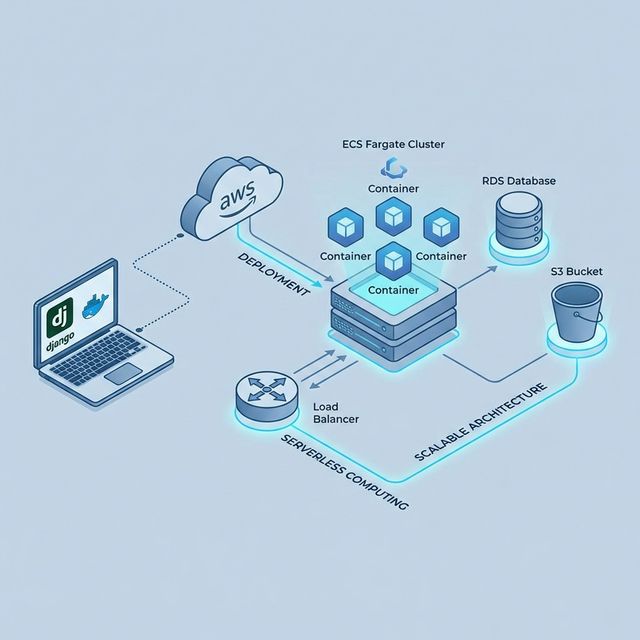
Deploying a modern Django application requires more than just a server. It requires a resilient architecture that can handle traffic spikes, recover from failures, and manage resources efficiently. AWS Elastic Container Service (ECS) with Fargate provides a "serverless" container experience, allowing you to run Docker containers without managing the underlying EC2 instances.
In this guide, we will walk through the entire lifecycle of a production-grade Django deployment:
1. Containerization
Building a secure, optimized Docker image with Gunicorn tuning.
2. Registry
Pushing versioned artifacts to AWS Elastic Container Registry (ECR).
3. Orchestration
Configuring ECS Tasks, Services, and Fargate for serverless execution.
4. Networking
Setting up Application Load Balancers (ALB) and simple auto-scaling policies.
Prerequisites
This guide assumes you have an AWS account with admin access, the AWS CLI installed and configured, and Docker running on your local machine. You should also be comfortable with basic Django concepts.
Part 1: The Production-Ready Dockerfile
The foundation of any container deployment is a solid Dockerfile. Minimizing image size and
optimizing the runtime environment are critical.
The Dockerfile
# Build stage
FROM python:3.11-slim as builder

WORKDIR /app

ENV PYTHONDONTWRITEBYTECODE=1
ENV PYTHONUNBUFFERED=1

COPY requirements.txt .
RUN pip wheel --no-cache-dir --no-deps --wheel-dir /app/wheels -r requirements.txt

# Final stage
FROM python:3.11-slim

WORKDIR /app

COPY --from=builder /app/wheels /wheels
COPY --from=builder /app/requirements.txt .

RUN pip install --no-cache /wheels/*

COPY . .

# Run collectstatic during build (or handling it in entrypoint)
RUN python manage.py collectstatic --noinput

EXPOSE 8000

# We'll override this in the ECS Task Definition, but it's a good default
CMD ["gunicorn", "myproject.wsgi:application", "--bind", "0.0.0.0:8000"]
Tuning Gunicorn for Container Limits
In a containerized environment, you must align your Gunicorn worker configuration with the CPU and Memory limits of your Fargate task. A mismatch can lead to poor performance or OOM (Out of Memory) kills.
For a standard 1 vCPU / 2 GB Fargate task, the recommended formula is:
So for 1 vCPU, use 3 workers. If your endpoints are I/O bound (calling external APIs, slow DB queries), consider using Gunicorn threads:
gunicorn --workers 3 --threads 2 --bind 0.0.0.0:8000 myproject.wsgi:applicationPart 2: Pushing to AWS ECR
AWS Elastic Container Registry (ECR) is where your Docker images will live. It’s secure, private, and integrates natively with ECS.
-
Create the repository:
aws ecr create-repository --repository-name my-django-app -
Authenticate Docker to ECR:
aws ecr get-login-password --region us-east-1 | docker login --username AWS --password-stdin.dkr.ecr.us-east-1.amazonaws.com -
Build and Push:
docker build -t my-django-app . docker tag my-django-app:latest.dkr.ecr.us-east-1.amazonaws.com/my-django-app:latest docker push .dkr.ecr.us-east-1.amazonaws.com/my-django-app:latest
Part 3: ECS & Fargate Cluster Setup
AWS Fargate removes the need to manage EC2 instances. You just define what to run (CPU/RAM), and AWS finds the capacity.
Step 1: Create the Cluster
Navigate to the ECS Console and create a new cluster. Select the "Networking only" template
(which implies Fargate). Name it django-production-cluster.
Step 2: Define the Task
The Task Definition is your application blueprint. It tells ECS which Docker image to use and how many resources to allocate.
- Launch Type: Fargate
- Task Memory: 2GB (2048)
- Task CPU: 1 vCPU (1024)
- Container Definition:
- Name:
web - Image: Your ECR URI
- Port Mappings: 8000
- Environment Variables:
DJANGO_SETTINGS_MODULE,DB_HOST, etc.
- Name:
Step 3: The Service & Load Balancer
The Service ensures your desired number of tasks are always running. If a task crashes, the Service starts a new one.
When creating the Service:
- Select Fargate launch type.
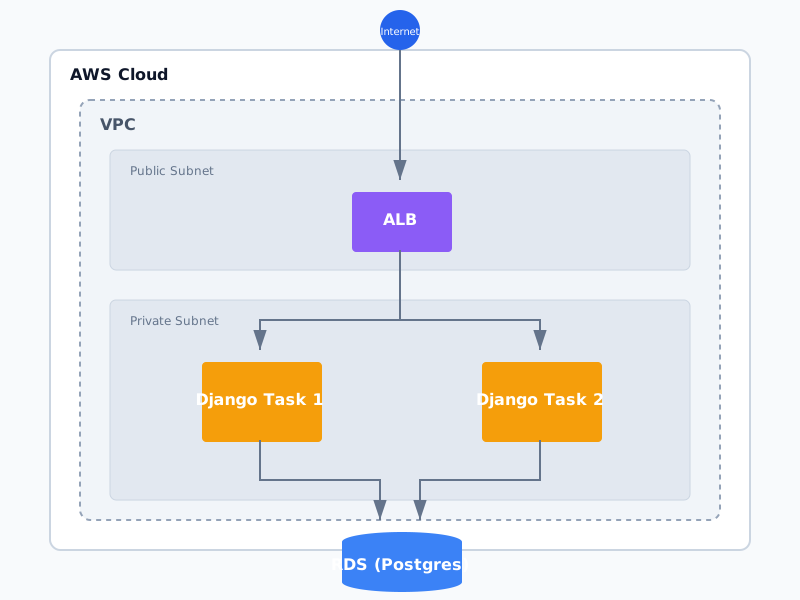
- Set desired tasks to 2 (for high availability).
- Under Load Balancing, choose "Application Load Balancer".
- Create a new ALB. Ensure the listener maps port 80 (HTTP) on the ALB to port 8000 on your container.
Part 4: Database & Security
RDS (PostgreSQL)
Do not run your database inside a container on Fargate. Use AWS RDS for PostgreSQL. Ensure your ECS Security Group allows outbound traffic to the RDS Security Group on port 5432.
Static Files (S3 + WhiteNoise)
In a containerized environment, local storage is ephemeral. You cannot store user uploads or static files on the filesystem.
- Static Files (CSS/JS): Use WhiteNoise to serve them directly from
Gunicorn, or run
collectstaticto upload them to S3 during the build pipeline. - Media Files (User Uploads): Must utilize
django-storagesto upload directly to S3.
Architecture Diagram
Conclusion
You now have a scalable, resilient Django application running on AWS. By using Fargate, you've eliminated the need to patch servers or manage OS updates. Your Load Balancer handles traffic distribution, and ECS ensures your containers are always healthy.
The next steps would be setting up a CI/CD pipeline (using GitHub Actions) to automatically build and deploy this infrastructure on every push to main—but that's a topic for another guide.